

Quick summary: AIS, or Annual Information Statement, shows all the income and financial transactions reported against your PAN for the year. You can download it directly from the Income Tax e-filing website in a few minutes. This guide walks you through every step, along with the PDF password format and fixes for common problems people face.
What You Need Before You Start
- Your PAN number
- Your password for the Income Tax e-filing portal, or your Aadhaar-linked mobile for OTP login
- A device with internet access
That is it. No extra documents or forms are needed to simply download your AIS.
Step-by-Step: How to Download AIS
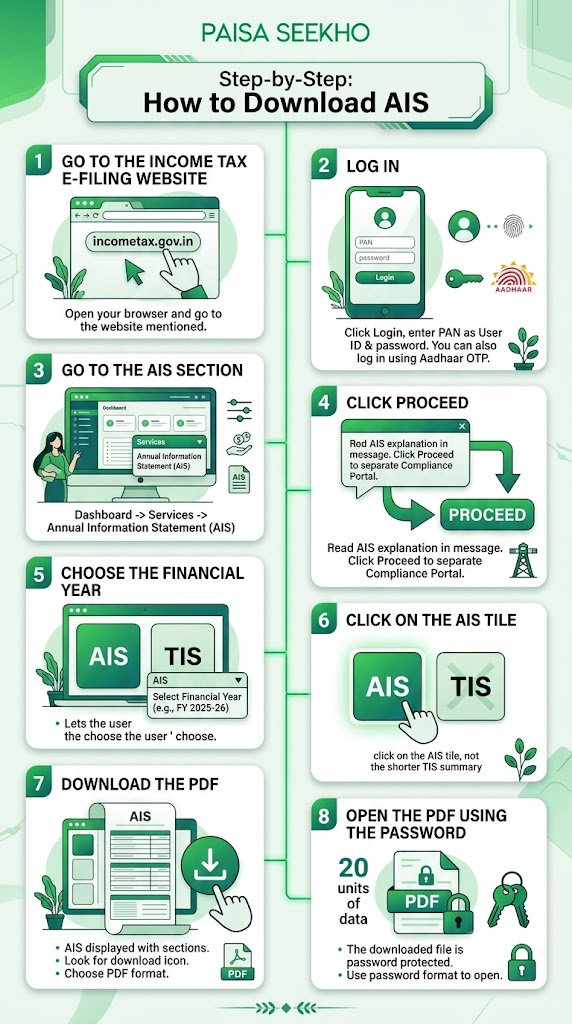
Step 1: Go to the Income Tax e-filing website
Open your browser and go to incometax.gov.in.
Step 2: Log in
Click on Login, enter your PAN as the User ID, and enter your password. If you do not remember your password, you can also log in using Aadhaar OTP.
Step 3: Go to the AIS section
Once you are logged in and see your dashboard, click on Services in the top menu. From the dropdown, click on Annual Information Statement (AIS).
Step 4: Click Proceed
A message box will appear explaining what AIS is. Click Proceed to continue. This will take you to a separate portal, called the Compliance Portal, where your AIS actually lives.
Step 5: Choose the financial year
On the next screen, you will see two tiles: AIS and TIS. Select the financial year you want, for example, FY 2025-26 if you are filing your return for AY 2026-27.
Step 6: Click on the AIS tile
Click on the AIS tile, not the TIS tile, which is a shorter summary version, covered in our TIS explained guide.
Step 7: Download the PDF
You will see your AIS displayed on screen, divided into different sections. Look for a Download icon, usually near the top of the page. Click it, and choose PDF as the format.
Step 8: Open the PDF using the password
The downloaded file is password protected. Use the password format explained below to open it.
What Is the AIS PDF Password?
The password is a combination of two things, written together with no space:
- Your PAN number in lowercase
- Your date of birth in DDMMYYYY format
Example: If your PAN is ABCDE1234F and your date of birth is 15 August 1995, your password would be:
abcde1234f15081995
If you are downloading AIS for a company, firm, or any entity that is not an individual, use the date of incorporation or formation instead of a date of birth, in the same DDMMYYYY format.
Can You Download AIS in Other Formats?
Yes. Besides PDF, AIS can also be downloaded as:
- JSON format, useful if you or your Chartered Accountant want to import the data into tax filing software
- CSV format, available for each category separately, useful if you want to open the data in Excel and sort or filter it easily
Most individual taxpayers only need the PDF version. The JSON and CSV formats are more useful for accountants or anyone doing detailed number-crunching.
Is There a Mobile App to Check AIS?
Yes. The Income Tax Department has a free app called AIS for Taxpayer, available on both Android and iOS. It shows the same information as the website version and also lets you submit feedback on any entry directly from your phone. This is a convenient option if you want to quickly check your AIS without opening a browser.
Common Problems and How to Fix Them
“Incorrect password” error when opening the PDF.
Double-check that you have typed your PAN in lowercase letters, with no space before your date of birth. A common mistake is typing the PAN in uppercase or adding a space, hyphen, or slash in the date.
AIS shows no data or looks empty.
This usually means no financial institution has reported any transaction against your PAN yet for that financial year, or the data has not finished updating on the system. Try again after a few days, especially early in the financial year when banks and other institutions are still filing their reports.
The AIS website is slow or not loading.
This is common closer to the ITR filing deadline, when many people are checking their AIS at the same time. Try again during non-peak hours, such as early morning, or use the mobile app instead.
You cannot find the “Proceed” button after clicking AIS.
Make sure pop-ups are not being blocked by your browser, since the AIS section sometimes opens in a way that some browsers mistake for a pop-up.
You see an old financial year and cannot find the current one.
Check the financial year dropdown carefully. AIS for the most recent financial year usually becomes fully available a few months after the year ends, once most institutions have filed their reports.
What Should You Do After Downloading AIS?
Downloading your AIS is just the first step. Once you have it, compare it carefully against your own records:
- Your salary slips and Form 16, for salary income
- Your bank statements and FD interest certificates, for interest income
- Your broker or mutual fund statements, for capital gains and dividends
If you spot anything wrong, duplicate, or unfamiliar, you can submit feedback directly on the AIS section of the portal. This helps correct the record before you file your return, so the numbers you declare match what the tax department already has on file.
Frequently Asked Questions
1. Is downloading AIS free?
Yes, completely free. There is no charge to view or download your AIS from the Income Tax portal.
2. Do I need a separate login for AIS?
No. You use the same login, PAN and password, or Aadhaar OTP, that you use for the regular Income Tax e-filing portal. There is no separate account to create.
3. What if I forgot my Income Tax portal password?
You can reset it using the “Forgot Password” option on the login page, or simply log in using Aadhaar OTP instead, if your Aadhaar is linked to your PAN and a valid mobile number.
4. How far back can I download AIS?
AIS is generally available for recent financial years, since it was introduced by the Income Tax Department in November 2021. Older years before that are not covered by AIS.
5. Can someone else download my AIS on my behalf?
Only if they have your login credentials or are formally registered as your authorised representative on the portal. Otherwise, AIS is accessible only to you, using your own PAN-based login.
6. Why does my AIS keep changing every time I check it?
Banks, employers, and other institutions report information to the tax department throughout the year, not all at once. This means your AIS can update as new reports come in. It is a good idea to check it again closer to your actual filing date, rather than relying only on an early download.
Key Takeaways
- Download your AIS by logging into incometax.gov.in, going to Services then Annual Information Statement (AIS), clicking Proceed, selecting the year, and downloading the AIS tile.
- The PDF password is your PAN in lowercase, plus your date of birth in DDMMYYYY format, with no space.
- AIS is also available in JSON and CSV formats, and through the AIS for Taxpayer mobile app.
- If the PDF will not open, double-check the password format first, since this is the most common issue.
- Always compare your AIS against your own records, salary slips, bank statements, broker statements, before filing your return.
Sources: Income Tax Department, Government of India: FAQs on AIS (Annual Information Statement); Income Tax Department: Annual Information Statement (AIS); ClearTax: New Annual Information Statement (AIS).
This article is for general information only and does not give tax advice. For guidance specific to your filing, consult a Chartered Accountant.
Last Updated on 1 month ago by Team Paisaseekho