

Quick summary: Before you can use most features on TRACES, like checking your detailed tax credit history or filing TDS returns, you need to register on the portal. The steps are different depending on whether you are registering as an individual taxpayer or as a deductor, a business or employer who deducts tax. This guide walks you through both processes clearly, along with what to do if something goes wrong.
Documents Needed To Register on TRACES
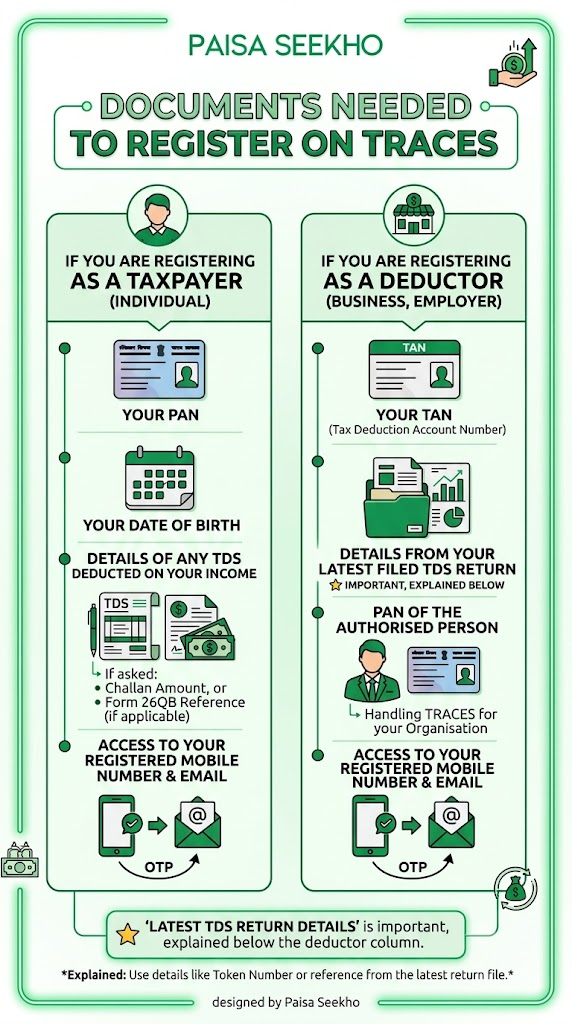
If you are registering as a taxpayer (individual):
- Your PAN
- Your date of birth
- Details of any TDS deducted on your income during a recent year, if asked, like a challan amount, or a Form 26QB reference, if applicable
- Access to your registered mobile number and email
If you are registering as a deductor (business, employer):
- Your TAN, Tax Deduction Account Number
- Details from your latest filed TDS return, this is important, explained below
- PAN of the authorised person handling TRACES for your organisation
- Access to your registered mobile number and email
Important Rule Before You Register as a Deductor
You cannot register as a deductor on TRACES the moment you get a TAN. There is one condition that must be met first:
You must have already filed at least one TDS return, not a NIL return, and it must show the status “Processed at CPC” on the system.
A NIL return is one where no actual tax was deducted or deposited during that period. TRACES specifically requires a return with real, reported challan or deduction details before it will let you register, since it uses this filed return to verify who you are.
In simple words: file your first quarterly TDS return properly. Once it is processed, then come back and register on TRACES.
How to Register as a Taxpayer (Individual)
Step 1: Go to the TRACES website at tdscpc.gov.in
Step 2: Click on “Register as New User”
Step 3: Select “Taxpayer” as your user type, and click Proceed
Step 4: Enter your basic details:
- PAN
- Name (as per PAN)
- Date of birth
Step 5: Choose your verification method. You can usually verify yourself in one of two ways:
- Through the e-Filing portal, if your PAN is already registered and active on the Income Tax e-filing website, incometax.gov.in, TRACES can confirm your identity through this connection
- Through KYC details, where you enter specific figures like a TDS challan amount, a Form 26QB reference, or similar tax-related details from a recent transaction, so the system can confirm you are who you say you are
Step 6: Review your details on the confirmation screen. If anything is wrong, use the Edit option to fix it before continuing.
Step 7: Set up your User ID and Password for your new account.
Step 8: Submit your registration. You will see a message confirming your request has been submitted.
Step 9: Check your email and mobile phone. You will receive an activation link and activation codes. Click the link, enter the codes, and your account becomes active.
Step 10: Log in using your new User ID and password. You can now view your Form 26AS, submit feedback, or raise a query.
How to Register as a Deductor (Business or Employer)
Step 1: Go to tdscpc.gov.in
Step 2: Click on “Register as New User”
Step 3: Select “Deductor” as your user type, and click Proceed
Step 4: Enter your TAN. A verification code will be sent to your registered email or mobile number linked to that TAN. Enter this code and click Proceed.
Step 5: KYC Validation. This is the most important and most detail-sensitive step. You will be asked for:
- The Token Number of your latest filed, original, not corrected, TDS return, for a specific Financial Year, Quarter, and Form Type
- Challan details (CIN): the challan amount, challan date, and BSR code from that return
- PAN and amount details for up to 3 deductees reported in that same return
A useful tip: type these details directly from your filed return and challan receipt. Do not copy-paste from another document, and do not guess or round off any figures, since even a small mismatch will cause this step to fail.
Step 6: Once your KYC details are verified, the system generates an authentication code. This code is valid only for that same day, and only for the same Financial Year, Quarter, and Form Type you selected.
Step 7: Your TAN and organisation name will already be filled in. You now need to add:
- PAN of the authorised person, the individual who will manage TRACES for your organisation
- Their date of birth
- Your organisation’s communication address
Note: if your business is a sole proprietorship, the PAN of the deductor, the business, and the PAN of the authorised person can be the same. If your business is a company, LLP, or similar entity, these two PANs must be different, since the authorised person must be an individual, not the entity itself.
Step 8: Set your User ID and Password, then click Create Account.
Step 9: Review the confirmation screen carefully. Use Edit if anything needs correcting, or click Confirm if everything looks right.
Step 10: You will see the message “Registration request successfully submitted.” An activation link and activation codes will be sent to your registered email and mobile number.
Step 11: Click the activation link within 48 hours of registering. Enter your User ID and both activation codes, one from email, one from mobile, to complete activation.
Step 12: Once activated, log in with your User ID and password. You can now file TDS returns, download Form 16/16A, and access other deductor features.
What About Government Deductors and PAOs?
Government offices that deduct TDS follow a slightly different process, depending on whether they have an AIN, Account Office Identification Number. Those without an AIN follow additional verification steps specific to government deductors. If your organisation is a government department, check with your accounts office for the specific documents needed, since the process branches differently from the standard non-government deductor steps above.
PAO (Pay and Accounts Office) users, who help manage TDS for government deductors, register separately by selecting “PAO” as the user type during registration, and follow a similar step-by-step process tailored to their specific role.
Common Problems and How to Fix Them
“TAN already registered” error.
A TAN can only be registered on TRACES once. If your organisation has changed the person handling TRACES, you do not need to register again, simply update the authorised person’s details through your existing account, or contact TRACES support to transfer access.
KYC validation keeps failing.
This is almost always caused by a mismatch between what you entered and the actual challan or return details on file. Double-check the exact challan amount, date, and BSR code against your physical challan receipt, not from memory.
I did not receive the activation email or SMS.
Check your email’s spam or junk folder first. If it is still missing, go back to the registration page, there is usually an option to resend the activation link and codes.
I missed the 48-hour activation window.
If your activation link expires, you will typically need to submit the registration details again to receive a fresh activation link and codes.
The system asks for a Token Number I do not have.
The Token Number is generated automatically when your TDS return is filed and processed. Check your original return’s acknowledgement or your accounting software, it should be recorded there. If you cannot find it, your CA or the person who filed the return should have a copy.
Frequently Asked Questions
1. Can I register on TRACES immediately after getting my TAN?
No. You must first file at least one TDS return with actual deducted amounts, not a NIL return, and it must show as “Processed at CPC,” before you are allowed to register as a deductor.
2. Do I need to register on TRACES to check my Form 26AS?
Not necessarily. You can view your Form 26AS directly through the Income Tax e-filing website without a separate TRACES registration. A TRACES taxpayer account is more useful if you want a more detailed history or need to raise a specific query.
3. Can two people from the same company access the same TRACES deductor account?
The account itself is registered under one authorised person’s details, but that person can share login access within the organisation as needed for day-to-day use, though this should be managed carefully for security.
4. What if my company’s authorised person leaves the organisation?
You will need to update the authorised person’s details in your TRACES profile. This typically requires providing the new person’s PAN and details through the portal’s profile update section.
5. Is there a fee to register on TRACES?
No. Registration on TRACES, whether as a taxpayer or a deductor, is completely free.
6. How long does the whole registration process take?
The steps themselves usually take 10 to 15 minutes to complete. However, you must then activate your account using the emailed and texted codes within 48 hours, so the process is not considered complete until that activation step is done.
Key Takeaways
- Taxpayer registration on TRACES needs your PAN, date of birth, and verification either through the e-Filing portal or your own KYC (challan/tax transaction) details.
- Deductor registration requires a TAN, and importantly, you must have already filed at least one non-NIL TDS return that shows “Processed at CPC” before you can register.
- The KYC Validation step for deductors needs exact details, Token Number, challan amount, date, BSR code, and PAN/amount details for up to 3 deductees, from your most recently filed return.
- After submitting your registration, you get an activation link and codes by email and SMS, and you must activate your account within 48 hours.
- A TAN can only be registered once on TRACES. If your organisation’s authorised person changes, update the details rather than registering again.
- Registration is completely free for both taxpayers and deductors.
Sources: TRACES, TDS Reconciliation Analysis and Correction Enabling System: Registration of Taxpayer, User Manual T-1, April 2026; TRACES: Registration of Deductor, User Manual D-1, April 2026; ClearTax: How to Get Registration in TRACES?; Paisabazaar: TRACES, How to Register and Login on TDS TRACES Website.
This article is for general information only and does not give tax advice. For guidance specific to your situation, consult a Chartered Accountant.
Last Updated on 1 month ago by Team Paisaseekho